Editing metadata
Most editing is done from an entity's detail page. Open it via search, the entity list, or by following a relation from another entity.
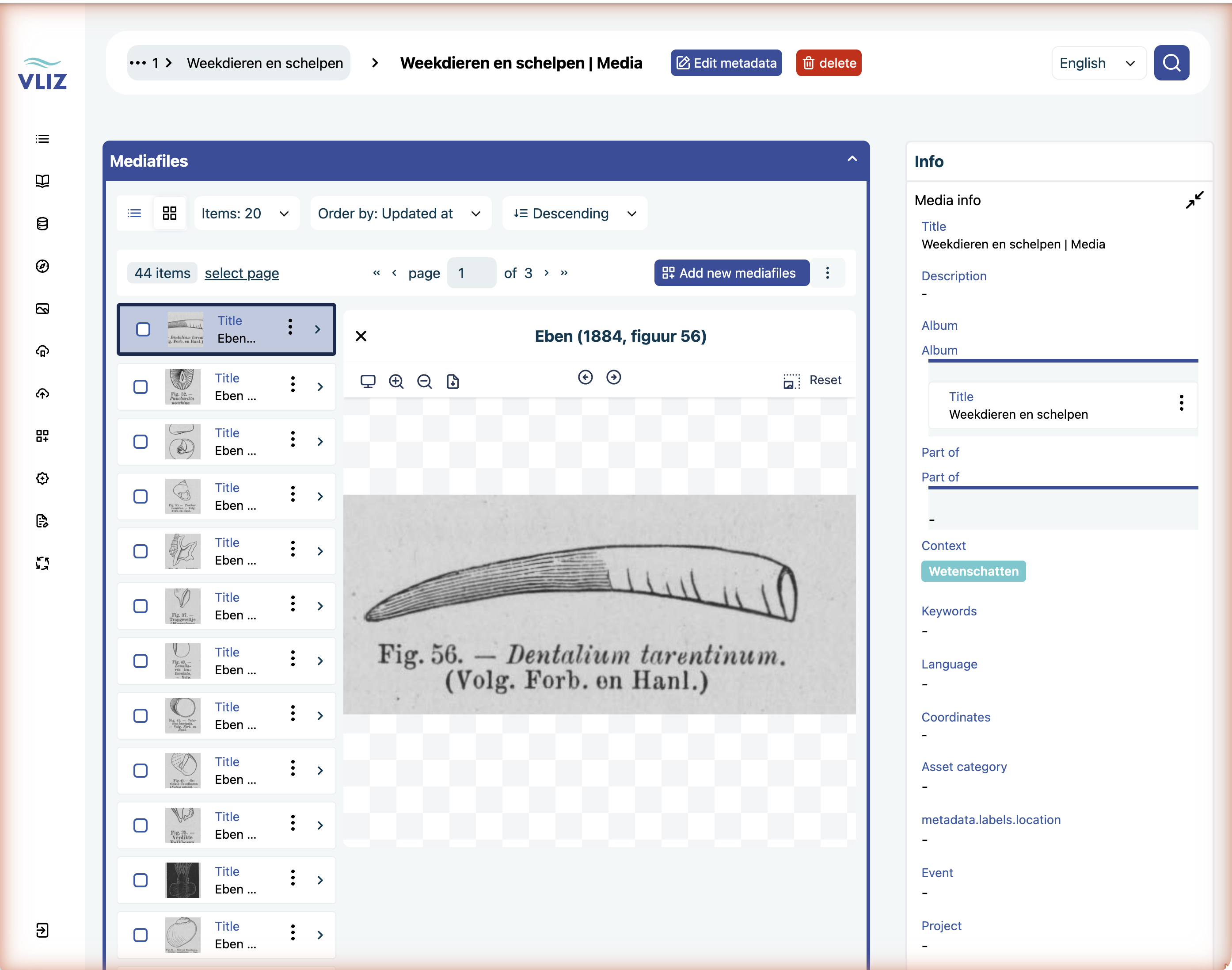
Anatomy of the detail page
A detail page is built from panels (the layout is defined by the GraphQL form definition, not hard-coded in the frontend). For a media you get two columns:
| Panel | What it contains |
|---|---|
| Mediafiles (left) | The file binaries attached to this media, with a IIIF viewer for the selected one |
| Info (right) | Media info: title, description, and all relations (album, part of, context, keywords, language, coordinates, asset category, event, project, …) |
Metadata and relations are not separate panels — they're one Info panel.
Editing a field
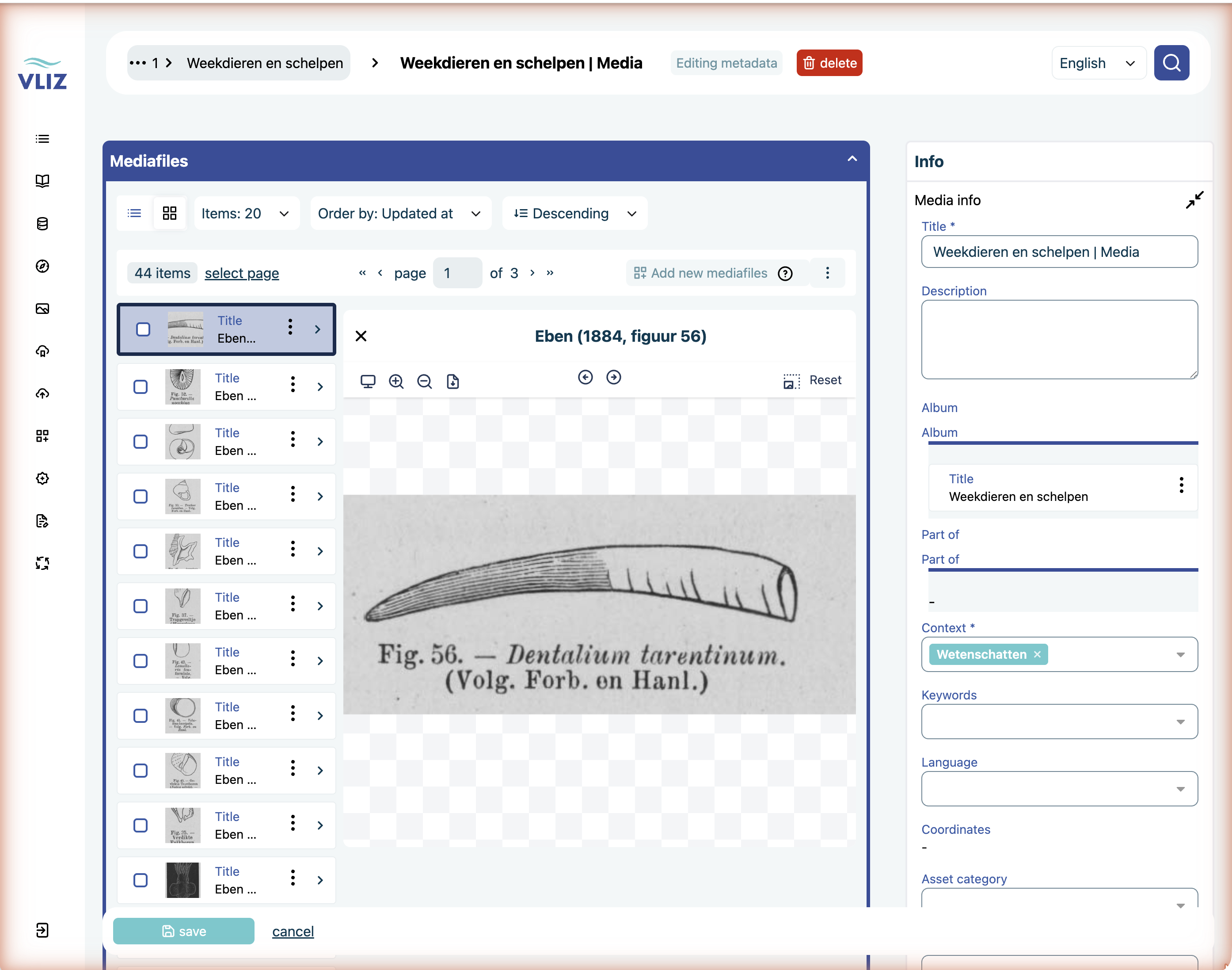
Editing is panel-level, not per-field: you put the whole Info panel into edit mode, change what you need, and save once.
- Click Edit metadata in the breadcrumb bar at the top of the page. The button changes to Editing metadata and the Info panel turns into a form.
- Change the fields you need. Required fields are marked with
*. - Click save at the bottom left — or cancel to discard.
- Cancelling asks for confirmation (Discard edit → Leave editor), so you can't lose changes by misclicking.
Editing a relation
In edit mode, relations (keyword, context, language, …) are combo-boxes: a text field with a dropdown arrow, and the current values shown as chips inside the field.
To add a relation:
- Click the field. A picker dropdown opens under it.
- Start typing — matching entities are filtered as you type.
- Pick one. It's added as a chip inside the field.
- Click save.
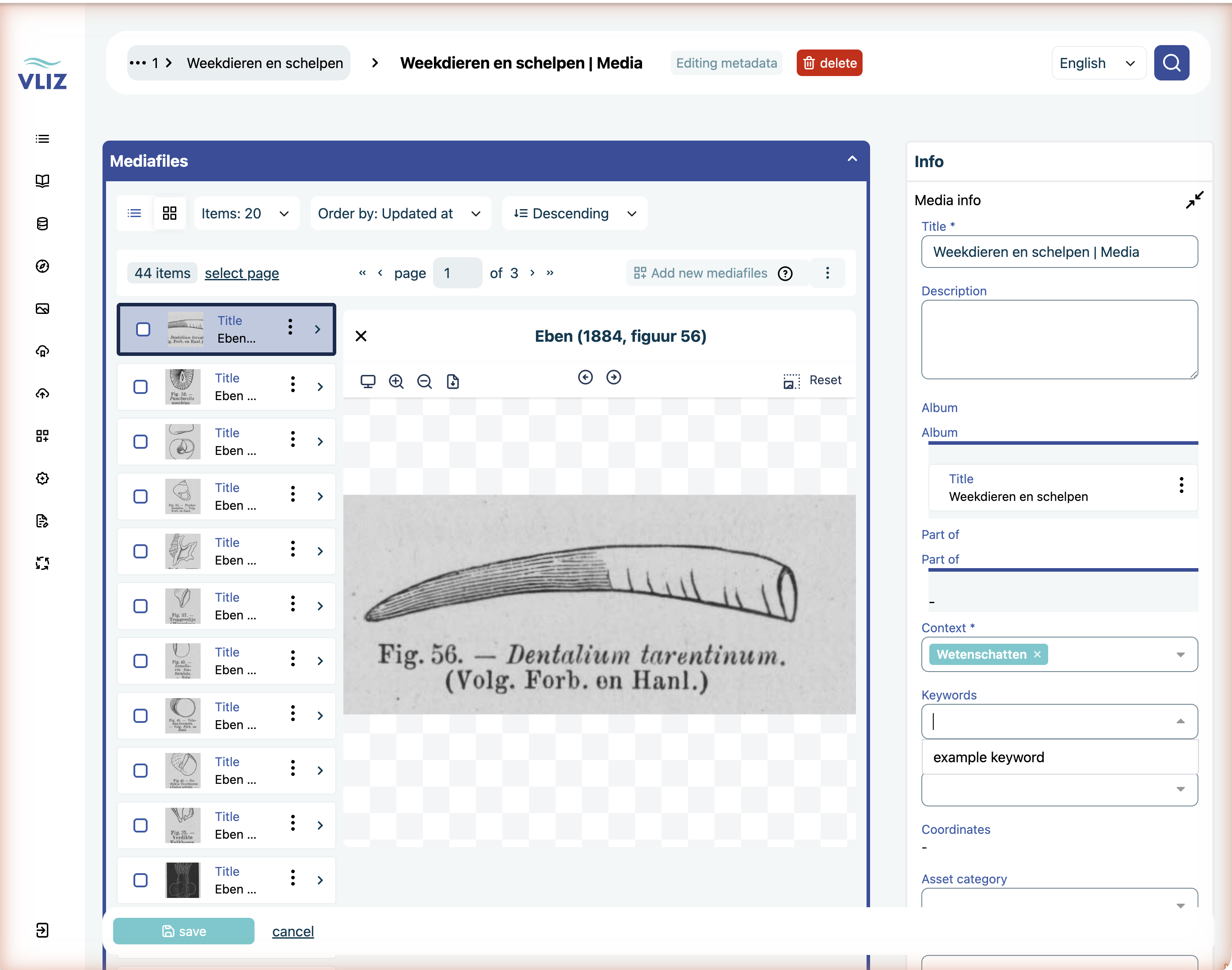
To remove a relation: click the × on the chip, then save.
To replace a single-value relation (e.g. has_album on a media — maximum 1): remove the existing chip first, then add the new one.
Editing required relations
Required relations are marked with a *. The Save button is disabled until they're filled. Required-relation lists for the major entities are documented under Data model → Entity reference.
Don't try to clear has_context and Save
Every content entity needs a context. If you remove it the form refuses to save.
Editing dates
Dates use a calendar picker. The format on screen is dd/mm/yyyy. Type or click — both work.
For maps, the date fields (date_of_creation, date_of_publication, date_of_last_revision, content_date) are stored as structured objects, but the picker hides that complexity — just type the date.
For free-form date strings (e.g. "early 18th century") on a Map, use the date_description text field instead of the picker.
Bulk actions
Select several entities in a list view and act on all of them at once:
- From a list view, tick the checkboxes of the entities you want. The counter changes to n/N items selected, with undo selection and select page next to it.
- Open the ⋮ menu to the right of the Create … button.
- Pick an action.
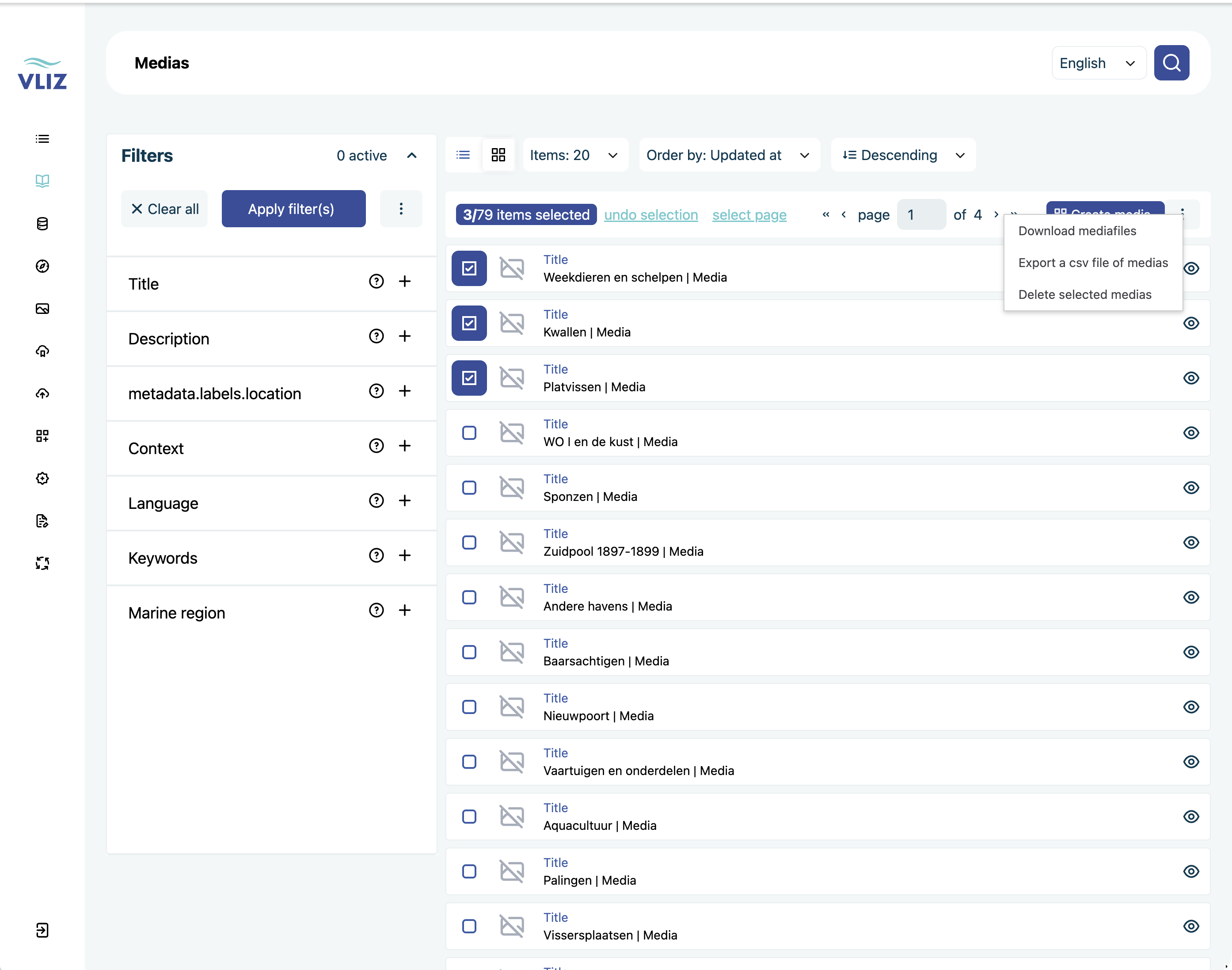
The available actions are:
| Action | What it does |
|---|---|
| Download mediafiles | Downloads the files of the selected entities |
| Export a csv file of medias | Exports the selected records as CSV |
| Delete selected medias | Deletes the selected entities |
There is no bulk metadata edit
You cannot change a field on several entities at once from the UI. To apply the same metadata change in bulk, export a CSV, edit it, and re-import it via Sidebar → Update.
Bulk delete is final
Bulk delete removes entities and their mediafiles permanently. Confirm your filters and your selection first — select page selects everything on the current page, which is easy to widen unintentionally.
Versioning and history
Every change is logged. To see who changed what:
- Open the entity.
- Switch to the History panel (or Audit log, depending on naming).
- Each entry shows: timestamp, user, field, old value → new value.
There's no built-in Undo — but the history makes it easy to manually restore a value.
Editing a mediafile vs. its parent media
Two distinct entities, two distinct edit flows. Make sure you're on the right one:
| Want to change | Open |
|---|---|
| Title, description, keyword (the cataloguing-level metadata) | The Media entity |
| Filename, copyright, owner, embargo, license, confidentiality | The Mediafile entity (inside the Mediafiles panel of the parent media) |
Common confusion: Person — owner exists on both Media (the conceptual owner of the asset) and Mediafile (the owner of this specific file). They can be different (e.g. media owned by VLIZ, but the high-res TIFF specifically owned by the photographer).
What you cannot edit
- The technical id (
MED-...for mediafiles, UUIDs elsewhere). Auto-generated, immutable. belongs_toon a mediafile (the parent media). Set automatically by the upload flow.creation_dateon Media / Album — system-generated.- Virtual relations (e.g.
has_mediaon an Album,has_mediafileon a Media) — these are reverse links, set the other side.