Filtering
Filters narrow a list view down to a subset that matches one or more criteria. They live on the left side of any list page and apply on top of any active search term.
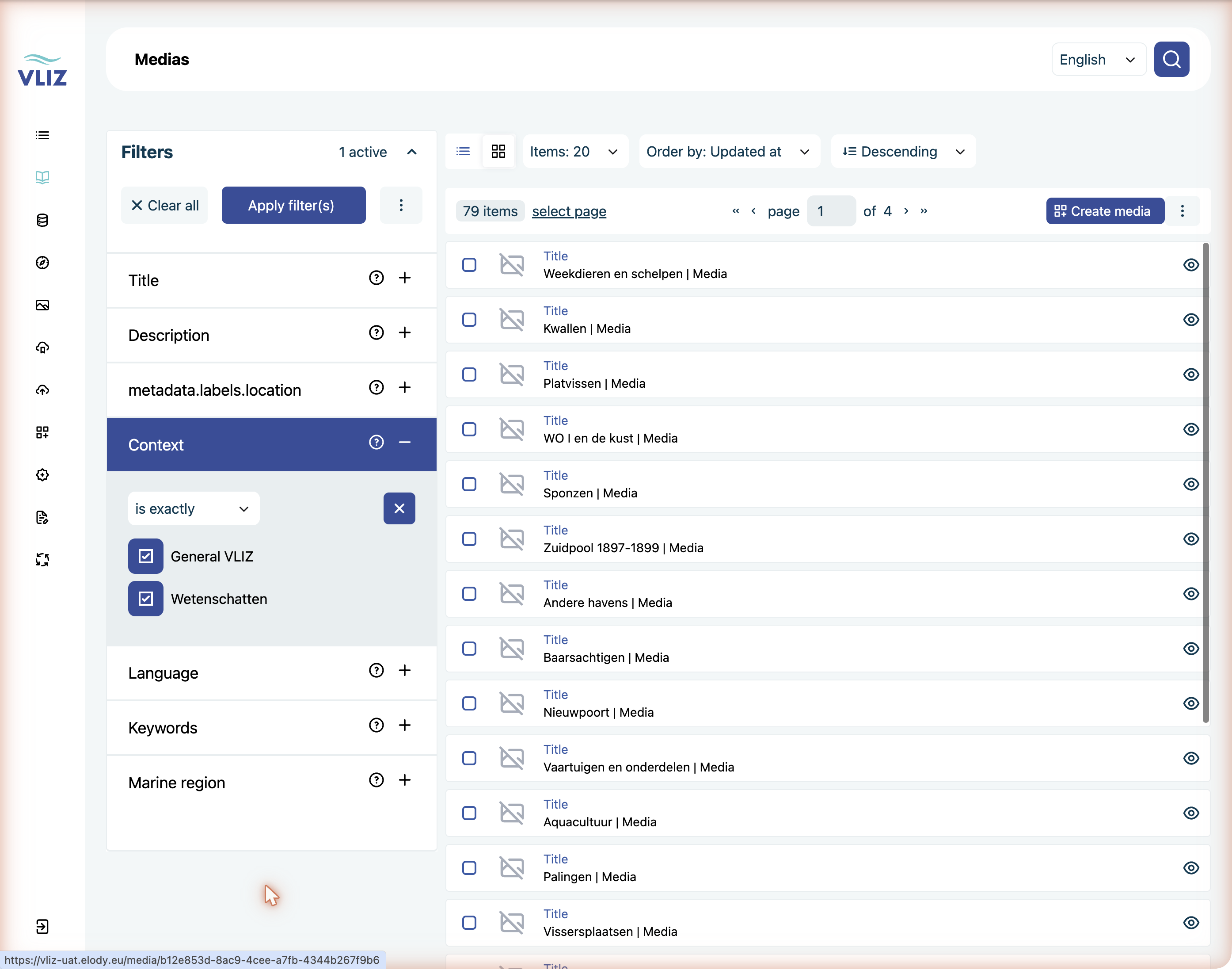
Where filters live
Every entity type has its own list view (open one from the left sidebar, e.g. Items → Media). The filter panel appears on the left of that list. Available filters differ per entity type — Media has Title, Description, Context, Language, Keywords, Marine region, … while a vocabulary list has only a handful.
Applying a filter
Filters are not applied as you type. Each one is built in three steps and then applied explicitly:
Open the list of the entity type you want to filter (e.g. Items → Media).
Click the + next to the filter you want to use. The row expands.
Pick a filter type — this is the matcher, not the value:
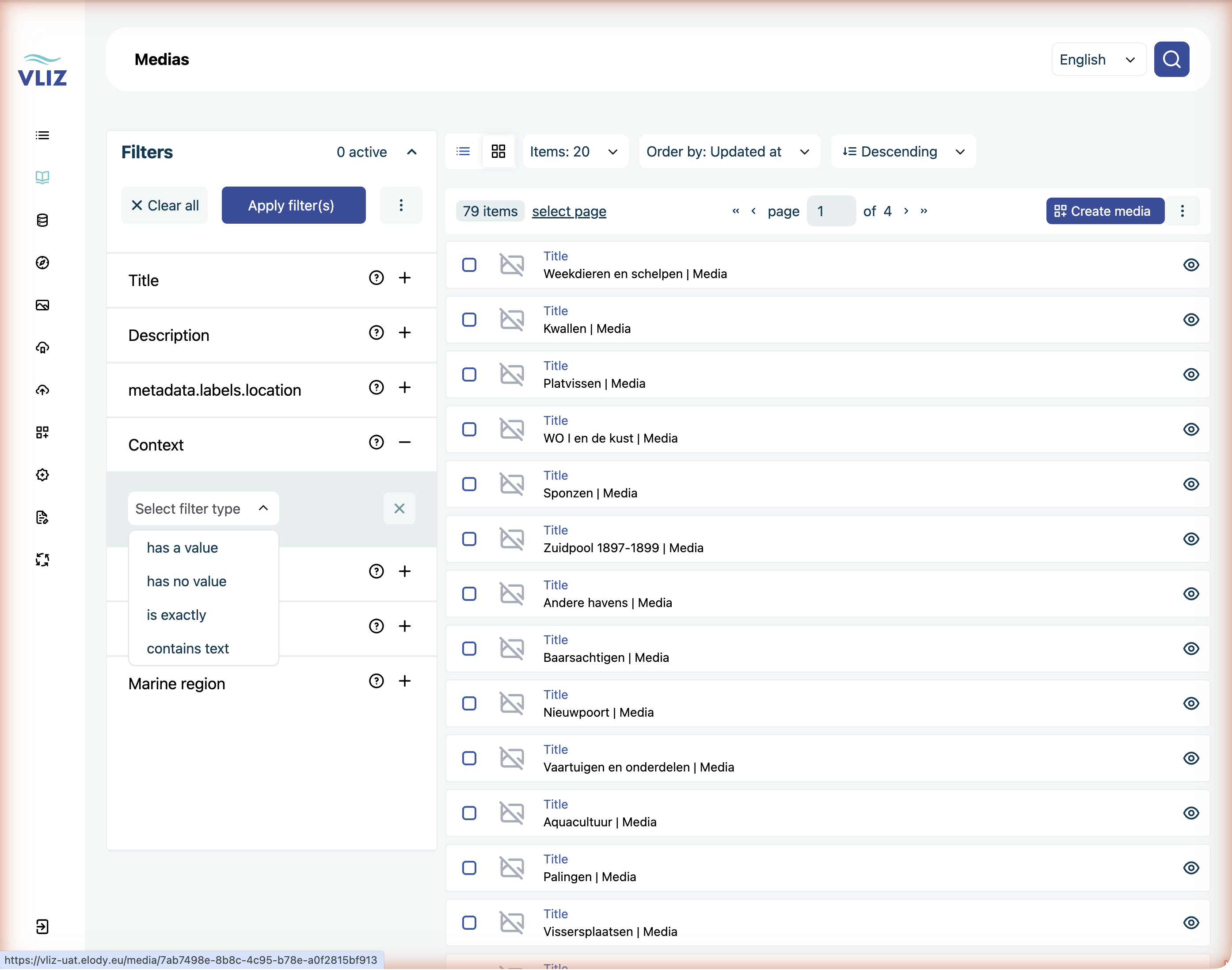
Filter type Use it for has a value The field is filled in, whatever the value has no value The field is empty — handy to find records still to be catalogued is exactly Pick one or more values from a list contains text Free-text substring match For is exactly, tick one or more values. Multi-select means either value matches, not both:
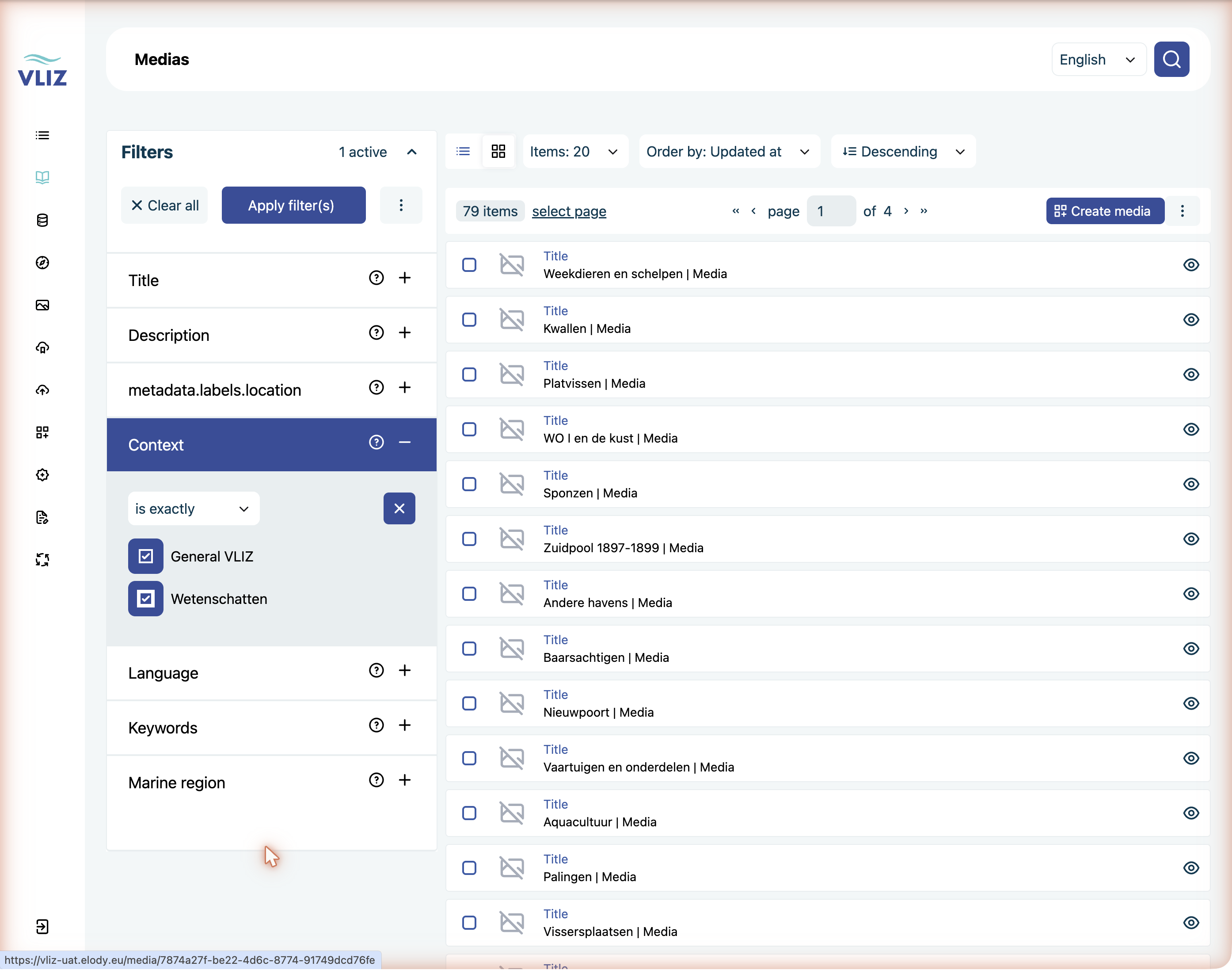
Click Apply filter(s). The counter at the top of the panel shows how many filters are active, and the applied filter's row turns dark blue.
Clear all resets everything; the × next to a single filter type removes just that one.
The result count only updates after Apply
If the number of items didn't change, check whether you actually clicked Apply filter(s) — the button greys out once your selection has been applied.
Combining filters
Filters combine with AND between fields and OR within a field:
- Keyword:
Coastal management+Beach profiles→ media tagged with either keyword. - Keyword:
Coastal management+ Marine region:North Sea→ media tagged withCoastal managementAND belonging toNorth Sea.
Add a free-text search on top of that and you get search ∩ filter — useful when there are many similar entities.
Frequently useful filter combinations
| Goal | How to filter |
|---|---|
| Recently uploaded media that still need review | Filter Media by Public/Private = Private + sort by Last modified descending |
| Everything from a partner organisation | Filter Media by Partner = chosen partner |
| Items in a specific archival collection | Filter Media by Archival collection |
| Photos taken at a particular site | Filter Media by Marine region + free-text search on locality |
| Files with embargo expiring soon | Filter Mediafiles by Embargo date range |
Date filters
Date filters expect a from–to range. Leave one side empty to get an open-ended range:
- From
01/01/2024, to empty → everything from January 2024 onwards. - From empty, to
31/12/2023→ everything up to end of 2023.
Format on screen is dd/mm/yyyy regardless of locale.
Saving a filter set
Same flow as in Searching → Saved searches: apply your filters, then use the ⋮ menu next to Apply filter(s) to save the set under a name.
Things to watch out for
metadata.labels.location. This filter shows a raw internal key instead of a readable label. It's a labelling bug, not a different kind of filter — it filters on locality.- Context filter. Most environments default to a single context (e.g. General VLIZ); if a colleague's entity isn't visible it may be in another context.
- Indirect filters. Some filter fields query through a relation. Filtering Media by Album title uses the album's title, not the media's. The filter dropdown shows the same labels you'd see on the album list.
- Resetting. Clear all removes filter selections but keeps your sort order. Reload the page if you also want default sorting back.
- Permissions. If you don't have access to certain entities, they won't appear in the dropdowns — even if they technically exist.